How do I make a booking?
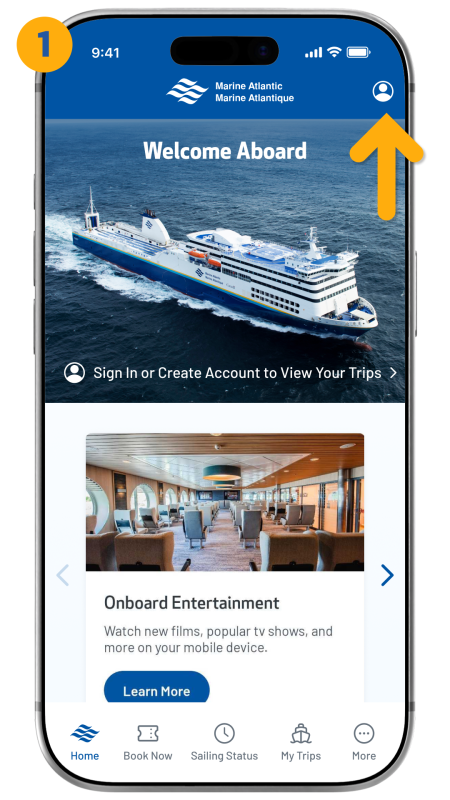
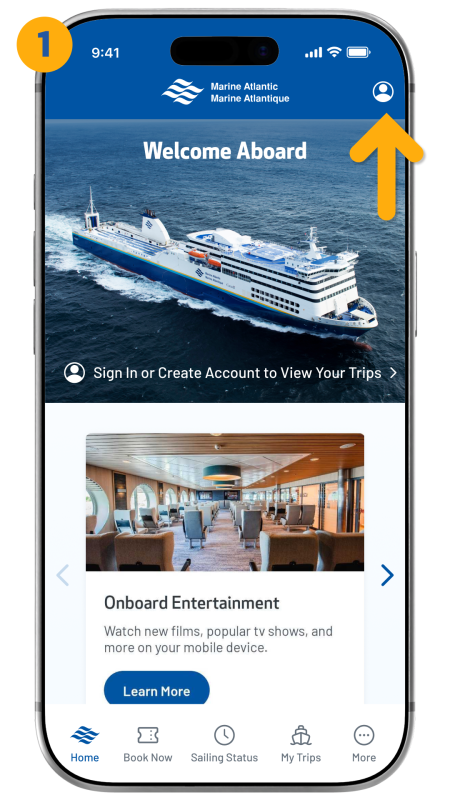
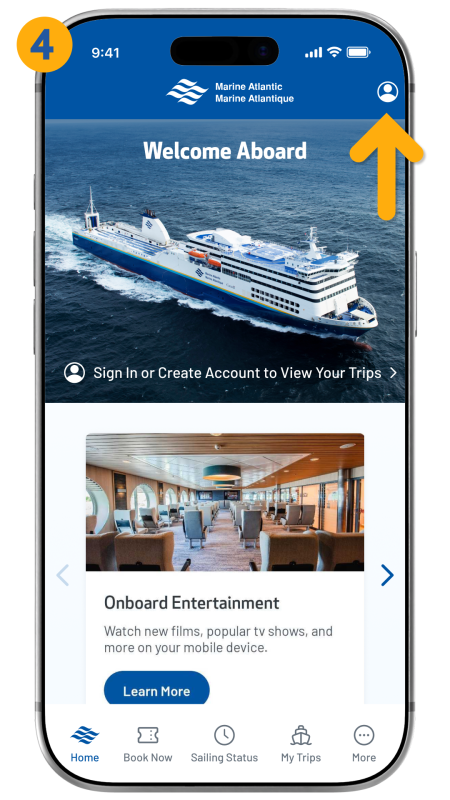
- For the best experience and full functionality (including viewing your bookings), we recommend signing in or creating an account. Tap the icon in the top-right corner to begin.
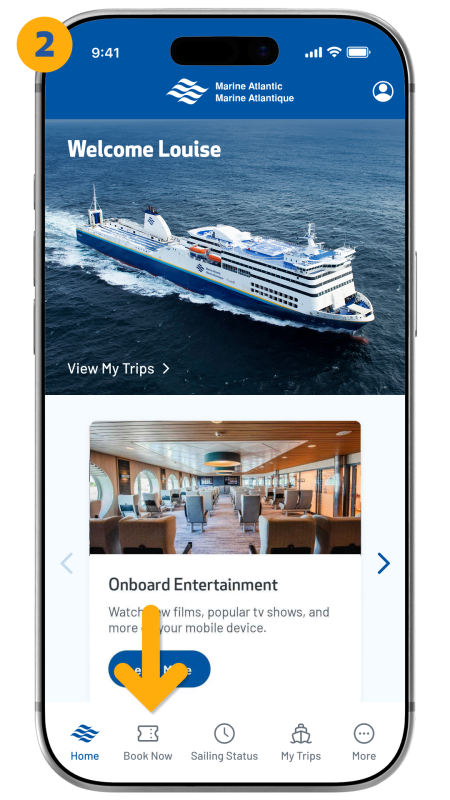
- Once you are past the login screen, tap the "Book Now" icon located in the bottom navigation bar to start a new reservation.
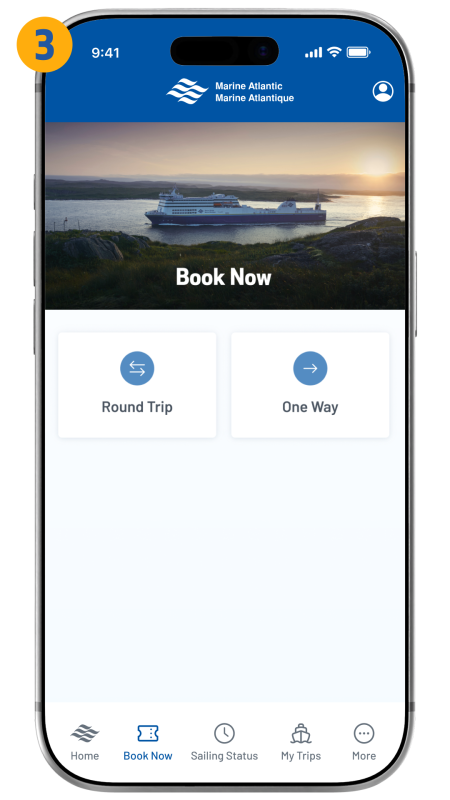
- Tap either "Round Trip" or "One Way".
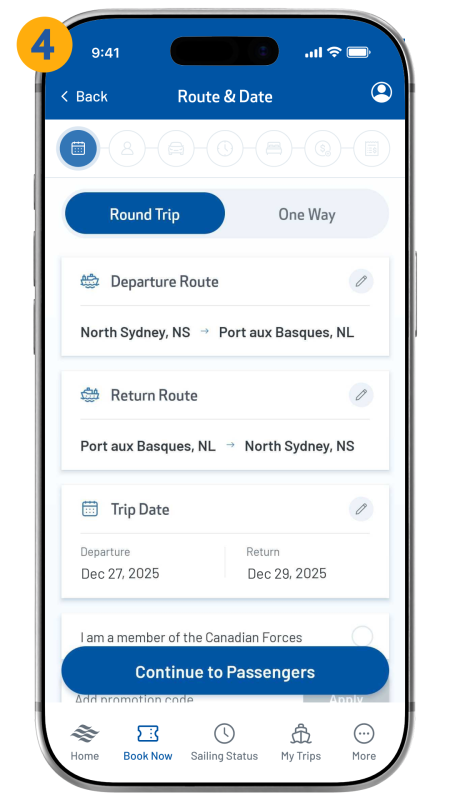
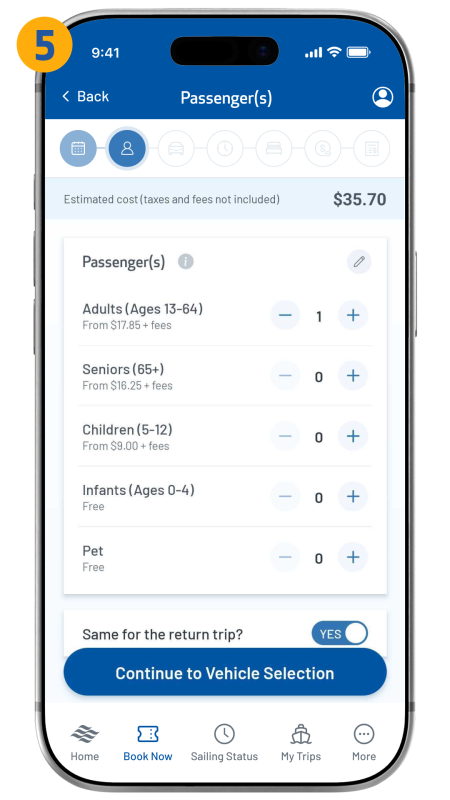
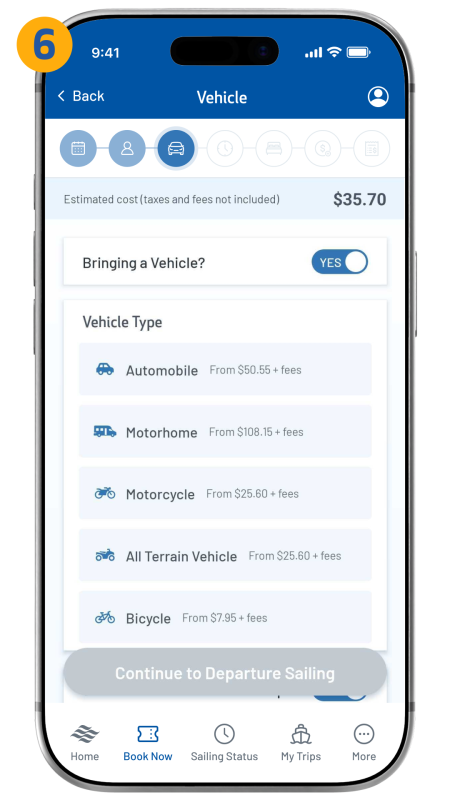
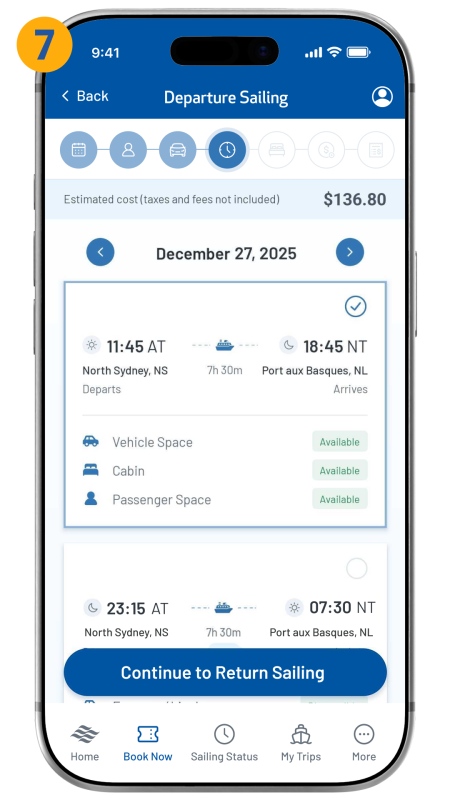
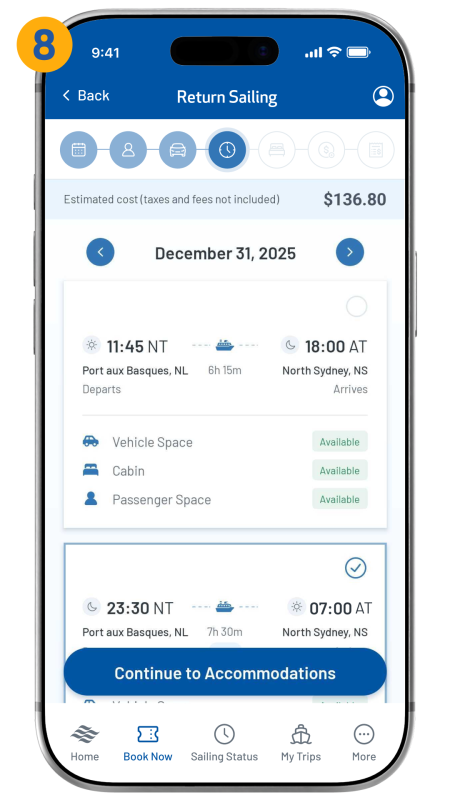
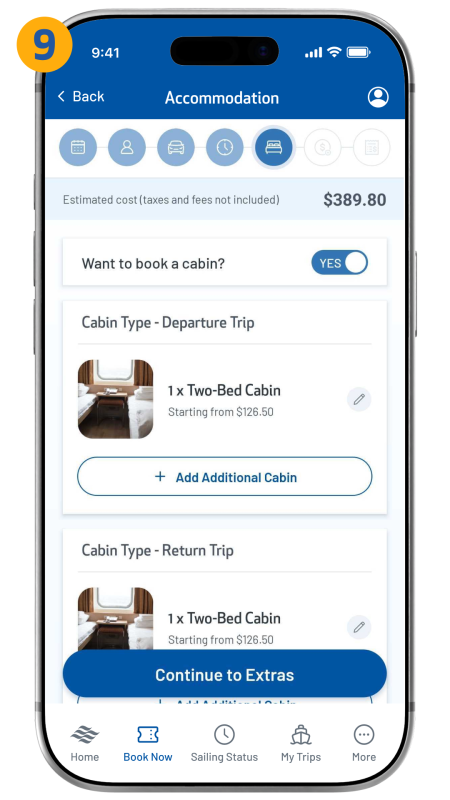
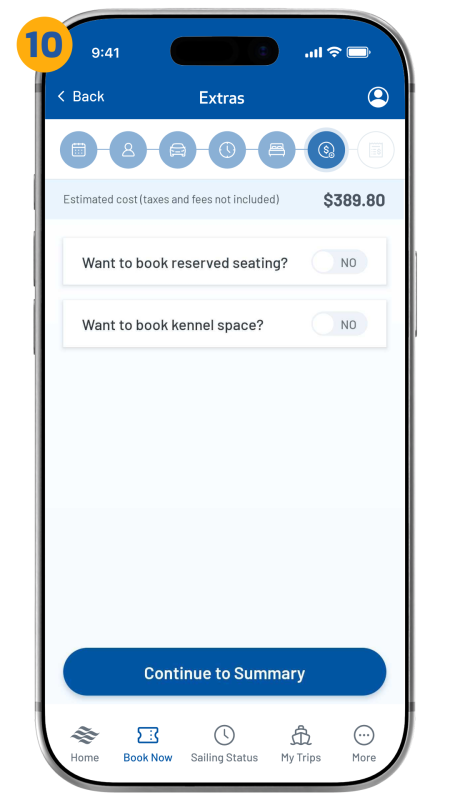
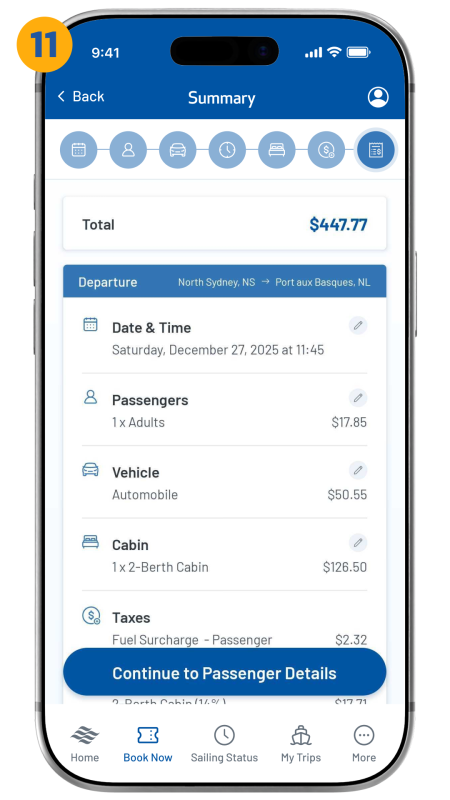
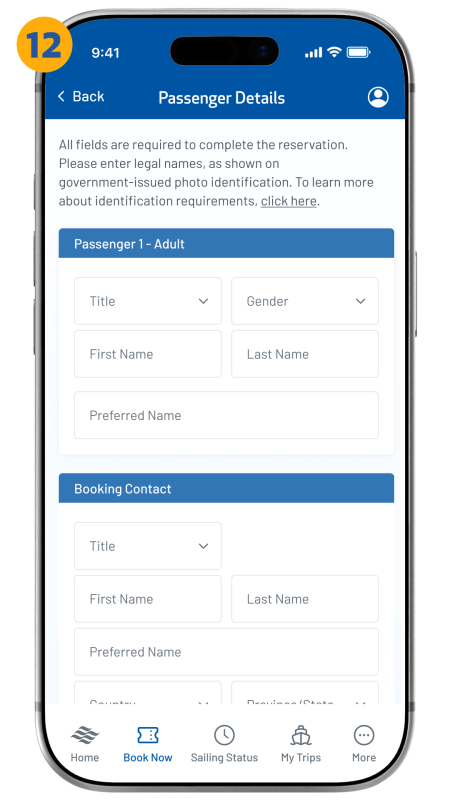
- Proceed with the booking process.
How do I cancel my booking?
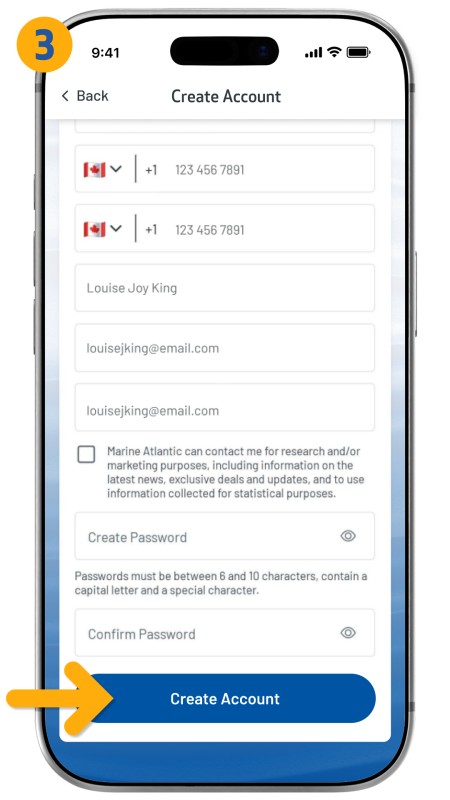
- To cancel a booking, ensure you are signed in. Tap the icon in the top-right corner to log in to your account.
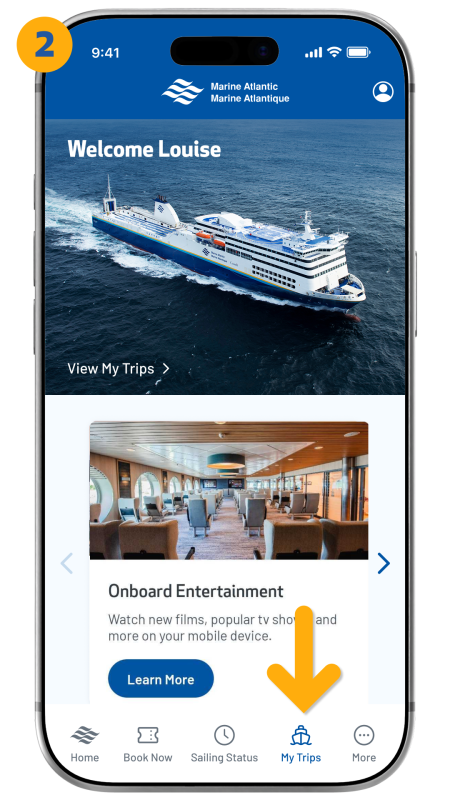
- Tap the “My Trips” icon from the bottom navigation bar.
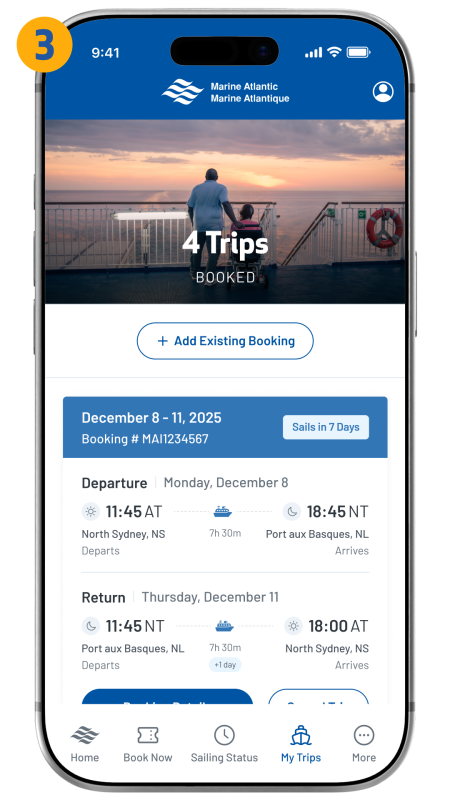
- Scroll through your booked trips to locate the booking you wish to cancel.
- Tap "Cancel Trip" to complete the cancellation.
How do I create an account?
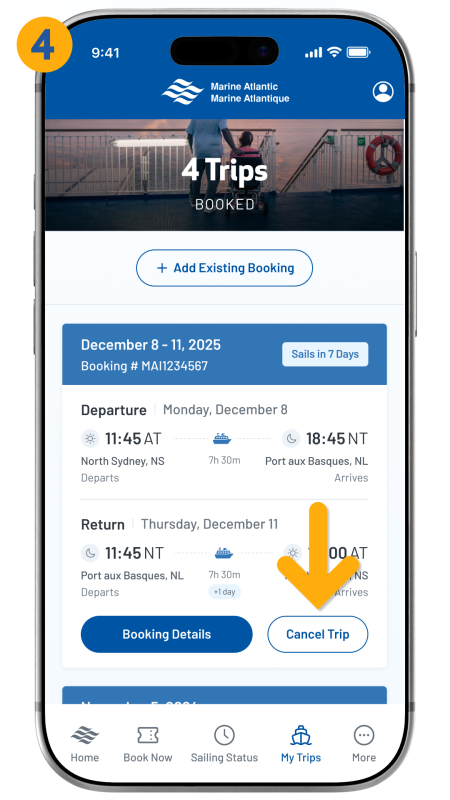
- If you are currently on the login screen, tap "Create an Account" to begin.
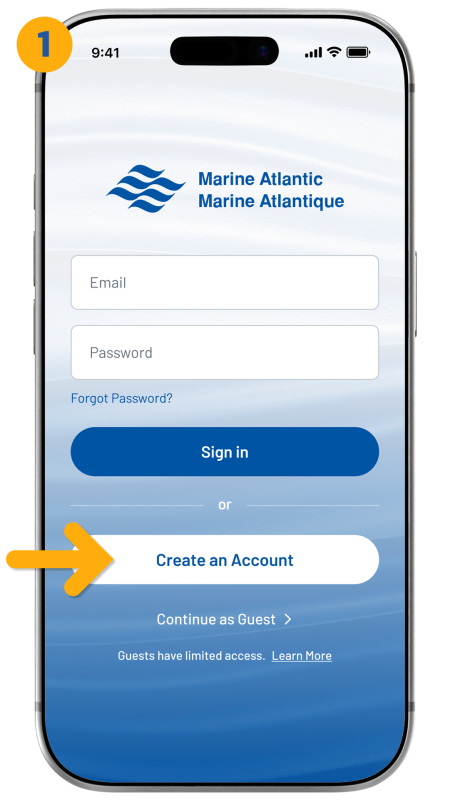
- Enter your details by filling in every field, as they are all required.
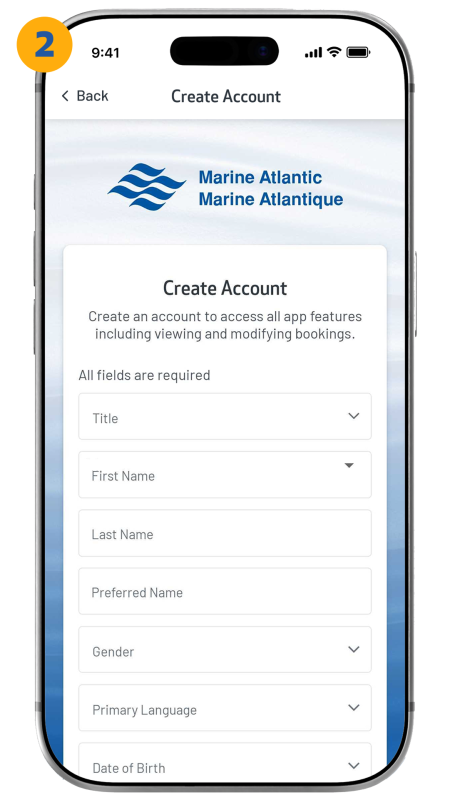
- Tap "Create Account" to complete your setup and finish the process.
- If you are currently using the app in guest mode, tap the icon in the top-right corner, and follow the previous three steps.
How do I check my sailing status?
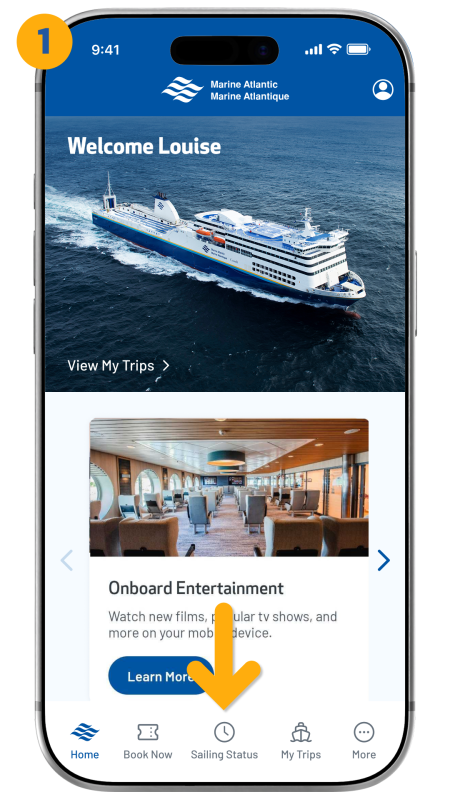
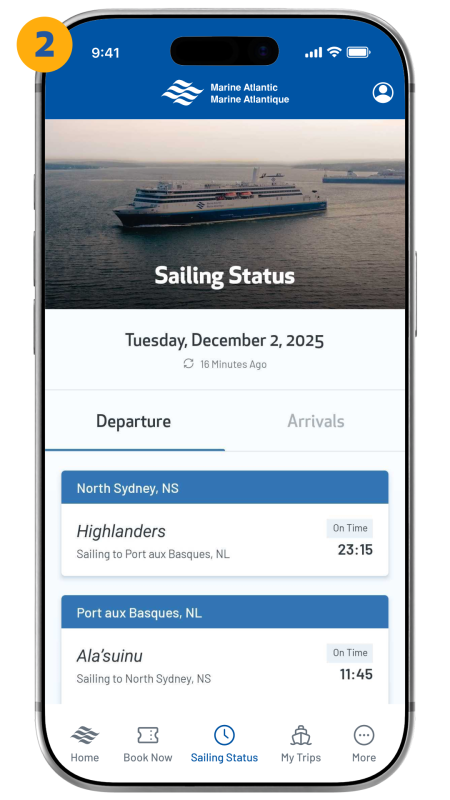
- Tap the "Sailing Status" icon located in the bottom navigation bar.
- From here, you will see all current arrivals and departures for each terminal displayed in real time.
How do I change my password?
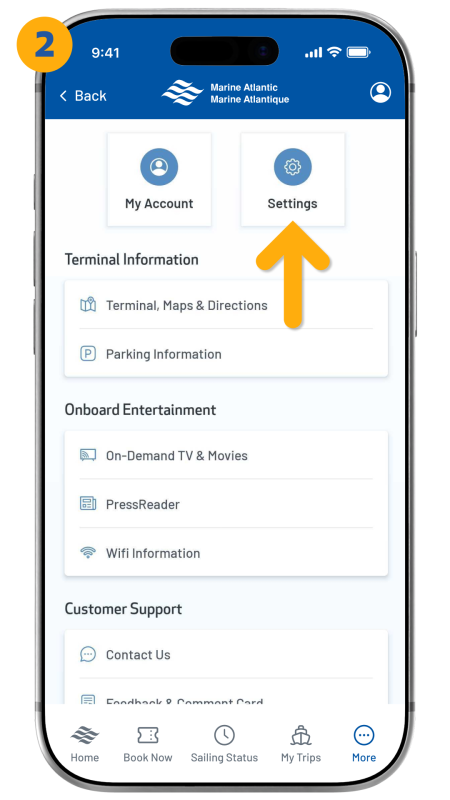
- After logging in, tap the "More" icon located in the bottom-right corner of the navigation bar.
- From here, tap “Settings”.
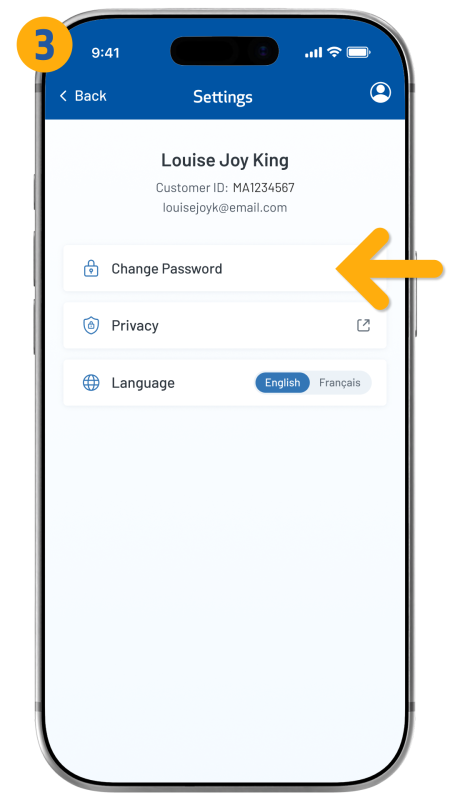
- Tap “Change Password”.
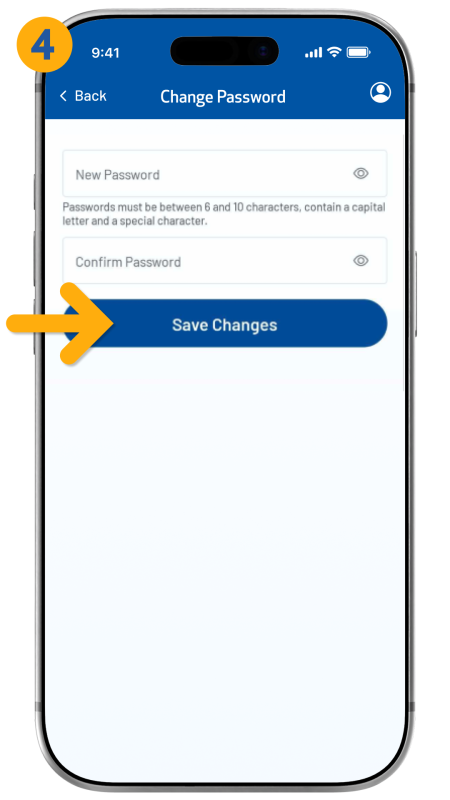
- Fill out all fields, then tap “Save Changes”.

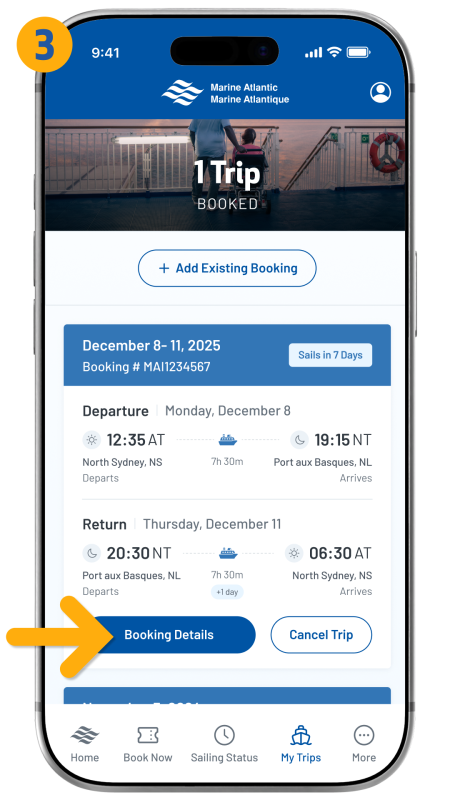
How do I view my trip?
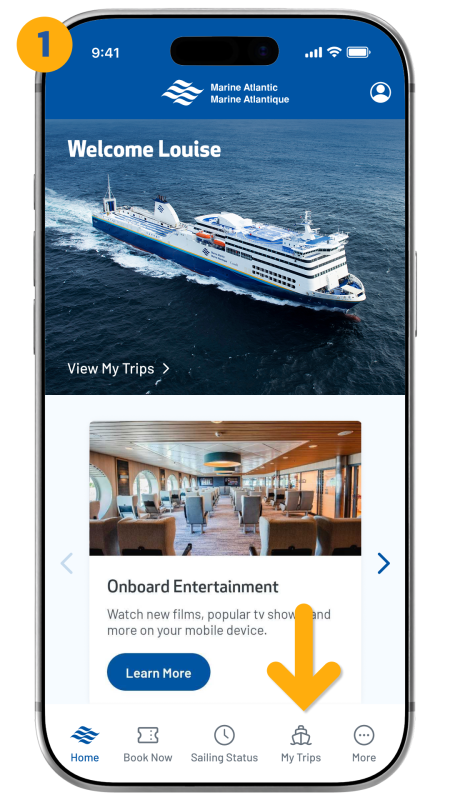
- After logging in, tap the “My Trips” icon from the bottom navigation bar.
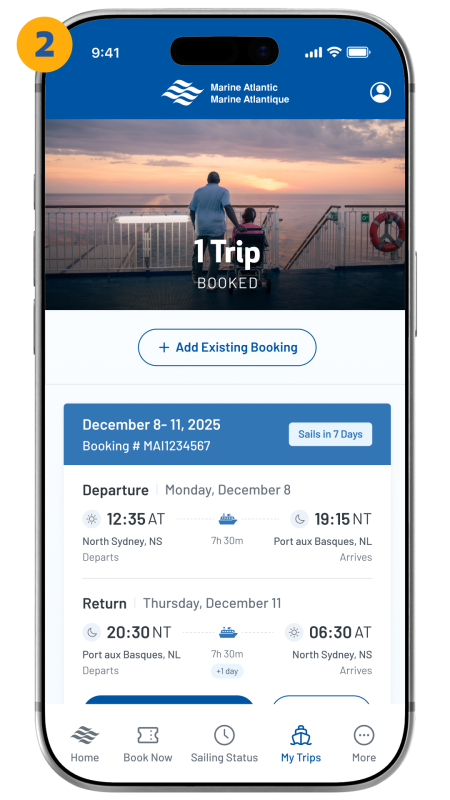
- You will see an overview of your booked trips.
- For more information, tap "Booking Details" on the specific trip you want to review.
How do I add an existing trip to the app?
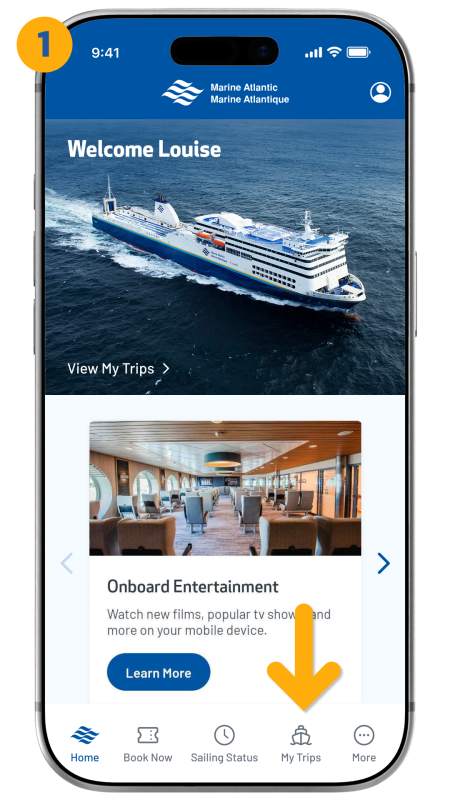
- After logging in, tap the “My Trips” icon from the bottom navigation.
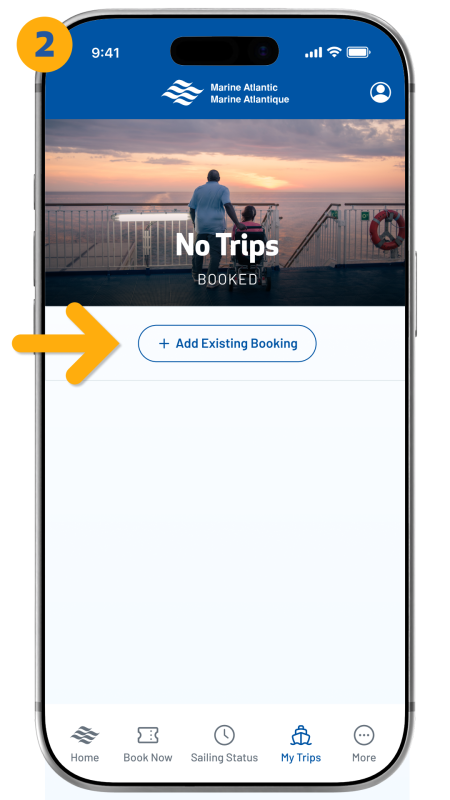
- Tap "Add Existing Booking".
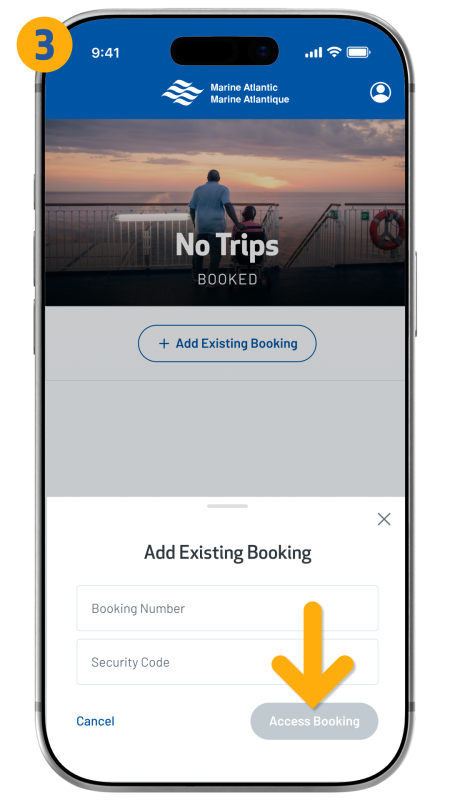
- From here, enter the booking number and the security code from your booking confirmation email (this can be found in the customer details section), and then tap “Access Booking”.
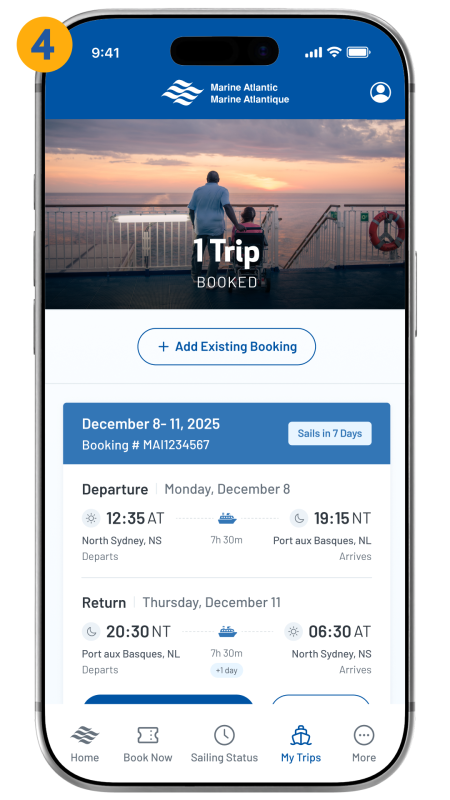
- Your booking will appear in your trip list.
Please note: If your booking was made before November 1, 2025, contact us at 1-800-341-7981 to have it added to your account.